In Windows OS, the desktop is a good place to organize the icons of your most frequently used apps, software, files, and even folders. Most users never change the location of their desktop icons, and if the layout changes by accident, becoming used to the new position might be difficult. Since you cannot constantly rearrange all of the icons, you must learn how to lock desktop icons on Windows 10/11.
You won’t have to rearrange the icons as much with the methods you’ve chosen because they’ll stay in position. This post will guide you through multiple methods and how to lock desktop icons in Windows.
How to Lock Desktop Icons in Windows
There are numerous reasons why the Windows operating system will rearrange your desktop icons. This can include accidentally holding and dragging an icon, uninstalling an app, or altering the display scale and resolution. So, to avoid any of the above scenarios, try these methods to lock desktop icons in Windows.
How to Lock Icons on Desktop Windows 10/11 Via View
The view setting is the simplest approach to lock icons on your desktop so they don’t rearrange randomly. For certain users, this setting is disabled, and the result is that the elements do not form a grid.
As a result, each icon dragged from its location remains where it is dropped, making the desktop appear cluttered with icons spread in an unorganized manner. So, if you are experiencing this issue, this method is for you.
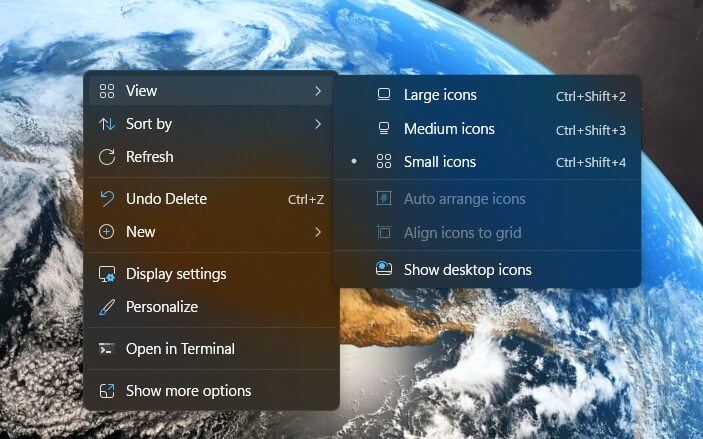
- Right-click anywhere on the desktop screen. Now you will see a small menu where you must hover the cursor over the “view” option.
- From the menu, you need to uncheck “auto arrange icons“. As you do that, all the icons will return to their original position and form a grid.
How to Lock Desktop Icons on Windows Via Theme Setting
You can also use Windows settings to keep your desktop icons in place. However, often you end up permitting without realizing it, which frequently happens when you try various themes.
While themes can help you customize the appearance of your computer, they can also mess with your desktop icons, however, there is a very simple solution to fix this problem with a few steps.
- Open the Windows menu to go to Settings.
- From settings, go to the personalization option.
- Now in the personalization option, select the theme option.
- Scroll down and select “desktop icon settings“.
- A new pop-up window will appear and at the bottom of this window, you will find an option, “Allow themes to change desktop icons“.
- Uncheck this option and click Apply, then OK.
How to Lock Icons on Desktop in Windows 10 Using Registry Editor
Another option is to use the Registry Editor. The main thing to remember here is to carefully follow all stages since some crucial keys must not be screwed up. Anything you do incorrectly will cause multiple issues with your system.
- Open the Registry Editor using the Run function.
- Use the “Regedit” command.
- Go to HKEY_CURRENT_USER.
- Now open software, then policies.
- Finally, go into Microsoft, Windows, and Personalization.
- Right-click in a blank area to create a new DWORD value.
- Name it “NoDesktopIcons,” and press Enter.
When using this method, be careful and avoid messing with other folders or keys.
Also Read:
- How To Customise The App Icons On iPhone
- What is Powershell.Exe Virus? Facts and How to Remove It
- How To Find Someone’s Amazon Wish List To Surprise Them
How to Lock Desktop Icons in Windows Via Group Policy Editor
Group policy is a Windows OS feature that allows you to manage configurations for multiple users using group policy settings and preferences. It can be used for a variety of purposes, but we’re talking about locking your desktop icons. Group Policy Editor can be useful if other users working on your PC change the icons or layout on your computer.
The process is fairly complicated, but if you follow all of the procedures correctly, you will solve the problem. Here’s how to utilize this method to lock desktop icons.
- Open Run.
- Run the command “gpedit.msc”.
- Now go to the user configuration option.
- Open the administrative tools option, and enter the control panel.
- Now, you can go to the customization option.
- Locate the policy that prevents changing desktop icons.
- Enable this policy and apply the changes.
Conclusion
Some elements of the Windows operating system are intended to improve comfort, yet they actually make matters worse. One of them is the auto-arranging feature. Because of this functionality, you may be dissatisfied that the icon arrangement on your desktop has been modified and no icon is now in its place. Try the “how to lock desktop icons in Windows 10 and 11” instructions.