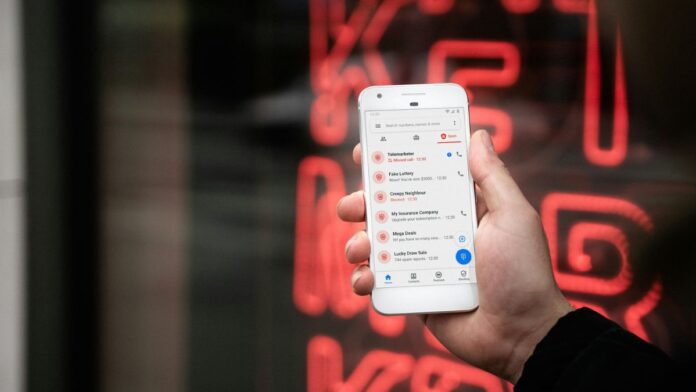

Truecaller is a popular application among all smartphone users. However, on iOS, the app made little sense. That’s because the most important function Truecaller provides, live caller ID, was never available on iPhones.
You could search for a number in the app later on, but you were never notified who was calling in real-time. That has finally changed. Truecaller said Wednesday that its live caller ID function is now available for iPhones.
Truecaller CEO Alan Mamedi confirmed the feature’s launch in September 2024. He hopes people will soon say, “Truecaller finally works on iPhones.”
While this is an excellent update to the Truecaller app, it remains to be seen whether it will significantly increase app use, given that Apple recently introduced its own caller ID lookup feature that automatically suggests who could be calling.
However, Apple uses information from your messages and emails to provide a caller suggestion. Truecaller has a considerably larger database of phone numbers and IDs, so using Truecaller will result in a much more accurate caller ID suggestion.
Truecaller also claims that with the feature’s rollout, iPhone users will be able to access the feature that automatically blocks spam calls. Truecaller for iOS now allows users to search for previously identified calls, going back as far as 2,000 numbers in the Phone app’s recent list.
Notably, Truecaller Premium subscribers will have access to the number search and caller ID features. However, if you are a free iOS user, you can still utilize the feature, but you will be shown advertisements. Auto-blocking of spam is already available to all users worldwide. The new Caller ID feature will be available starting January 22.
Also Read:
- How to Unlock WhatsApp Chats on Android and iOS
- How To Share Sticker Packs On WhatsApp For Android And iOS
How To Enable Caller ID On Truecaller iOS App?
To enable the caller ID feature on the Truecaller iOS app, you need to first ensure that your iPhone is running iOS 14.0 or later.
- Open iPhone Settings.
- Head to Apps.
- Open Phone.
- Now open Call Blocking & Identification.
- Here, you need to enable all Truecaller switches.
- Open the Truecaller app again.
Now you are set. The rest of the setup happens automatically.