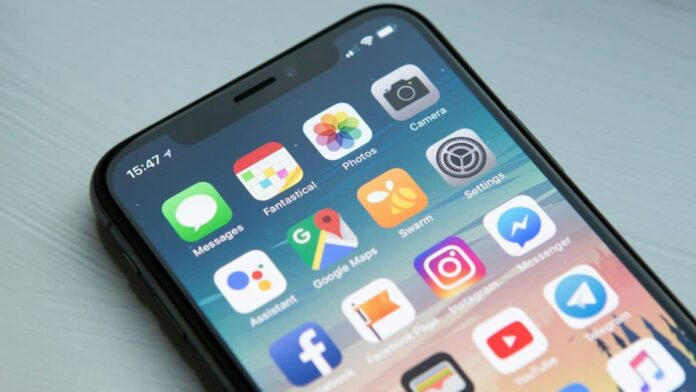

Apple’s upcoming iPhone operating system update, iOS 18, is expected to include a number of new features and improvements. One of the things Apple demonstrated during the keynote at its annual Worldwide Developers Conference (WWDC 2024) earlier this month was the option to hide not only apps but also app and widget names from the iPhone’s home screen.
This feature, coupled with a new Control Centre and the ability to add icons wherever is intended to provide more personalising options when the update is released to end users later this year.
According to Apple, iOS 18 Developer Beta 1 now allows users to hide apps, folder, and widget names from the home screen. While most Android phones allow users to do the same thing, iPhone owners will be able to customize their home screens to simply show app icons.
How To Hide App Names On iOS 18
- Tap and hold an empty spot on your iPhone’s Home Screen.
- Select Edit from the top-left corner of the screen.
- Tap Customise, then choose Large as the icon size.
- Increasing the size of the icons will automatically hide app names from the iPhone’s home screen.
Currently, there does not appear to be a way for users to hide app, folder, and widget names while keeping the icon size small.
Also Read:
iOS 18 Other Customization Options
iOS 18 also includes several more customization options, such as a redesigned Control Centre with a new controls gallery and new options to choose from. Swiping across pages allows users to access additional options and toggles.
The update also includes Dark Mode for icons on the home screen. Apple claims users may now select from four alternative icon styles: Automatic, Dark, Light, and Tinted. They can also install icons wherever on the home screen, rather than having them instantly change to the default grid.
Other customization options in iOS 18 include the ability to set up unique lock screen shortcuts. According to Apple, users can now choose alternatives from the controls gallery to replace the existing camera and flashlight quick toggles on the iPhone’s lock screen.