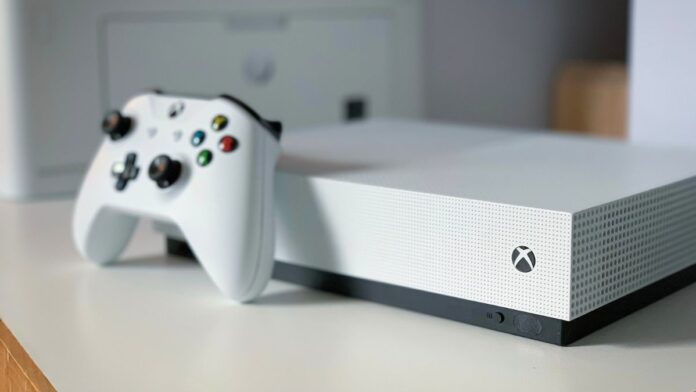

The narrator is an Xbox One screen reader tool that reads menus, buttons, and other forms of text aloud. It’s intended to be an accessibility option for gamers with visual impairments. If you mistakenly enabled the Narrator feature on your Xbox One, having a voice narrate every action you perform on your console can be annoying. Fortunately, turning off the Narrator is a straightforward process. We show you how to turn it off.
Turn off the Voice Narration on Xbox One
You can disable the narrator on your Xbox One in three ways. The first one is by using the power menu, which is the easiest method. The second one is through the system settings menu which has more options. Finally, the third one is with voice commands which is easy but only works if you can use voice commands with your Xbox One.
How to Turn off the Xbox One Narrator in the Settings Menu
Here’s how to turn off the Xbox One narrator in the system settings:
- Press the Xbox button on your controller to bring up the guide.
- Navigate to “Settings” and press A.
- In the Settings menu, select “Ease of Access” and press A.
- Select “Narrator” and press A.
- Toggle the Narrator setting to “Off”.
- Press the B button on your controller to return to the Settings menu.
There you have it! You can now continue using your Xbox One without a voice describing every action because the Narrator feature has been off.
How to Turn off the Narrator on Xbox One From the Power Menu
The Xbox One power menu is the most straightforward place to disable the narrator. The drawback is that this approach is also the most common way for people to unintentionally activate the function.
Here’s how to turn off the Xbox One narrator using the power menu:
- Turn on the Xbox One, and verify that the narrator is on.
- Press and hold the Xbox button on the controller until it vibrates and the power menu opens.
- Press the menu button (the three horizontal lines) to turn off the narrator.
- Return to the home screen and confirm that the narrator is off.
How to Turn off the Narrator on Xbox One With Voice Commands
Voice commands are supported on some earlier Xbox One systems using the Kinect add-on or a headset and microphone. One of the two voice commands listed below will stop the narrator if voice controls are activated:
- Hey Cortana, turn off narrator.
- Xbox, turn off narrator.
Use the Cortana command if Cortana is enabled on your device. You must use the Xbox command if Cortana is disabled. If voice controls are not activated, these functions not going to work.
The Bottom Line
Turning off the Narrator on your Xbox One is a straightforward operation that can be completed in just a couple of minutes. So, if you mistakenly enabled this function or simply find it annoying follow these instructions to disable it and return to gaming.


