
Windows 11 offers a wide range of customization options to personalize your desktop experience. From changing themes and accent colors to customizing the taskbar and Start menu, you can make your Windows 11 desktop reflect your style. However, the options are still limited in many ways.
One of them is making your taskbar transparent. You can make the taskbar transparent up to some extent with Windows settings but third-party apps do it perfectly. So, if you are wondering how to get transparent taskbar in Windows 11 then we are here to help you. Let’s take a look at the different methods you can use to make your taskbar transparent.
How To Get A Transparent Taskbar With Windows 11 Settings
Before we get into the more complex methods, if you only want a little of transparency in the taskbar, you can do so through the Windows 11 Settings app. This should be enabled by default, but if it is not, here’s how to enable transparency in Windows 11.
- Open the Settings app.
- Choose the Personalization section on the left side menu.
- Click Colors.
- Enable the Transparency effects toggle.
This will enable transparency across different parts of Windows 11, including the taskbar. Depending on your theme, the transparency effect may be more or less visible.
How To Get A Transparent Taskbar With TranslucentTB
If the method above is insufficient for you, then you should consider using TranslucentTB. As the name suggests, this software can turn your taskbar transparent. Here’s how:
- Download TranslucentTB from the Microsoft Store.
- When you open the app, your taskbar will instantly become translucent.
- To change the settings, click the arrow on your taskbar to open the overflow menu, then select the TranslucentTB icon.
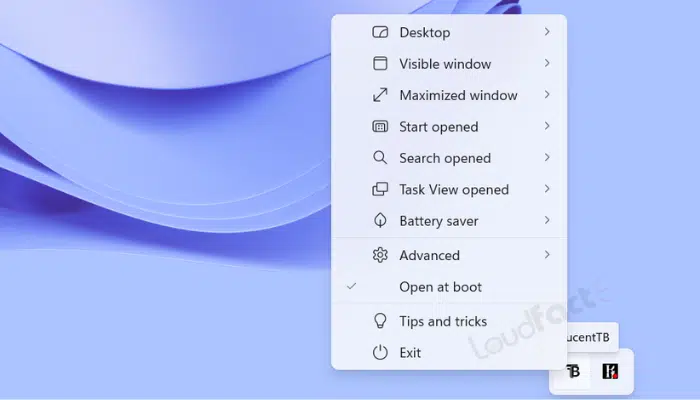
- To adjust the taskbar’s general settings, navigate to the Desktop sub-menu. You can select Normal (the usual Windows 11 transparency), Opaque, Clear, and Acrylic.
-
- The Accent color option can also be used to choose the color and transparency level for the taskbar.
- The remaining menu options allow you to customize the behavior in certain situations.
- Enable the Open at boot option (which should be enabled by default) to ensure that your transparent taskbar is always enabled.
Also Read:
Conclusion
There are many more alternatives for getting a transparent taskbar. One such alternative is Stardock’s Start11, a customization app that lets you customize not only the taskbar but also the Start menu. Another alternative is Open Shell, which is a fan project and a continuation of the previous Classic Shell application. It also allows you to customize the Windows Start menu and taskbar.
Whether you use the methods we suggested above or any other, there are a few alternatives for creating a transparent taskbar on Windows 11, giving you the desired look and feel, similar to the macOS Dock.