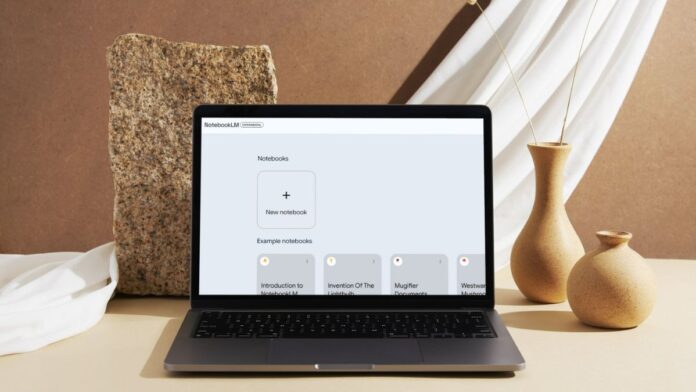

On Thursday, Google’s NotebookLM was updated with various new features and made available in over 200 countries and regions. The AI-powered research and writing assistant was first unveiled at last year’s Google I/O event as Project Tailwind, and it was later made available to a small number of users in the United States.
Users can now access the platform, which includes sources like site URLs and Google Slides, as well as inline citations and other capabilities. It is likewise driven by the Gemini 1.5 Pro AI model.
NotebookLM now offers multimodal capabilities thanks to its integration with Gemini 1.5 Pro, the AI model that powers Gemini Advanced. This implies that users can include images, charts, and diagrams in their sources, and the platform will answer queries about them. Previously, it could just read and analyze the text.
Another useful new feature is the usage of Google Slides and website URLs as sources. This allows users to add a link to a website or a Google Slides file and have the AI chatbot organize and answer questions about it. The Gemini 1.5 Pro model is handy again as it allows the chatbot to navigate the slides. Aside from that, users can upload files from Google Drive, PDFs, text files, and copied text.
Furthermore, the platform now displays inline citations for created responses. Hovering over the citation displays the supporting excerpt from the source for quick fact-checking. Users can also click on the passage to get deeper into the original text. Furthermore, the NotebookLM has a more in-depth comprehension of the sources and can generate frequently asked questions (FAQs), briefing documents, and study aids as needed.
Also Read:
- 6 WordPress Plugins To Make Your Website Responsive
- 10 Websites Like Mamahd – Best Alternatives To Mamahd
During a media briefing, Raiza Martin, Senior Product Manager at Google Labs, informed that the AI model will not be trained on user data or sources in any way. Journalists were also advised that as NotebookLM is a closed system, it does not do web searches to answer any questions and instead depends solely on the information contained in the sources.
How To Use NotebookLM
- Go to the NotebookLM website.
- Tap on Try NotebookLM.
- Look for the Sources icon on the left margin.
- Click on the plus icon.
- Choose your preferred mode of uploading source.
- Choose the file or URL you want to use.
- Now, you can type your query in the text field at the bottom.


