These days most people use Google Sheets to manage text. However, while entering a significant amount of text in a Google Sheets cell many face overlapping of it on other cells and columns if it cannot fit within the current cell’s dimensions.
Depending on your settings, the text might not overlap adjacent cells but instead be truncated, making the entirety of it virtually invisible until you click within the cell itself.
Both of these actions can be problematic, making your spreadsheets appear sloppy, difficult to read, and navigate. Wrapping text allows you to maintain some semblance of order in your document, ensuring that all of the text is displayed across multiple lines within its respective cell.
Wrap Text In Google Sheets
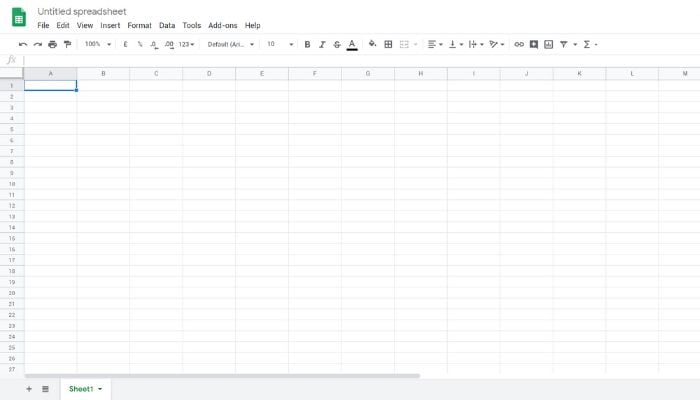
By default, text in a Google Sheet cell is aligned to the left and bottom side of a cell, with the text overflowing any adjacent blank cells.
Unless Google Sheet cell formatting is changed, those options may make your spreadsheet difficult to read. For this its better to make three text alignment adjustments.
For many cells, change the vertical alignment to the top, which ensures that the text starts at the top of each cell. Then adjust the horizontal alignment to the left so that paragraphs read much like they might in a document.
Lastly, enable text wrap to ensure that all text in a cell displays. The combination changes help make a Google Sheet with many text fields easier to read.
In order to change text wrapping settings in Google Sheets go with a text cell selected and choose the Format | Text Wrapping | Overflow option.
Text in a cell overflows adjacent blank cells. This is the default. In a text-heavy Google Sheet, you can choose Format | Text Wrapping | Wrap to make it so every word in a cell is displayed.
The cell will increase in size vertically to display the text. After you enable text wrap, you also may want to change column widths.
Google Sheets in Chrome on a computer also offers a Format | Text Wrapping | Clip option that truncates the display of text to the width of the cell.
How To Change Vertical And Horizontal Align Settings In Google Sheets
Vertical Align Settings
When you have several cells that contain a sentence or more of text, try Format | Align | Top. Several people find this easier to read since the text in each cell will start at the same level; otherwise, the height of the first word in each cell might vary.
Alternative settings include Format | Align | Middle, which works well for titles for rows, and Format | Align | Bottom, which works well with rows and/or cells of short text not long enough to wrap.
Horizontal Align Settings
For cells that contain sentences or paragraphs of text, try Format | Align | Left (or Ctrl+Shift+C). This matches the alignment that people may be used to when reading text in languages traditionally read from left-to-right, such as English, German, French, Spanish, etc.
Column and/or row headers may work well when centered: Format | Align | Center (or Ctrl+Shift+E). And, in some cases a column or row that functions as a header may benefit from right-alignment, Format | Align | Right (or Ctrl+Shift+R).
How To Change Text Wrap And Alignment In Google Sheets Mobile Apps
In the Google Sheets app on Android and iOS, you can select a cell (or cells), then tap the Text/Cell format icon in the upper right. This brings up both Text and Cell format options.
Mobile Google Sheets includes access to all three horizontal and vertical alignment options display: Left, center, right and top, middle, and bottom.
However, the Google Sheets app offers a single slider for text wrap. Tap Cell, then choose whether the Wrap Text option is on or off.